
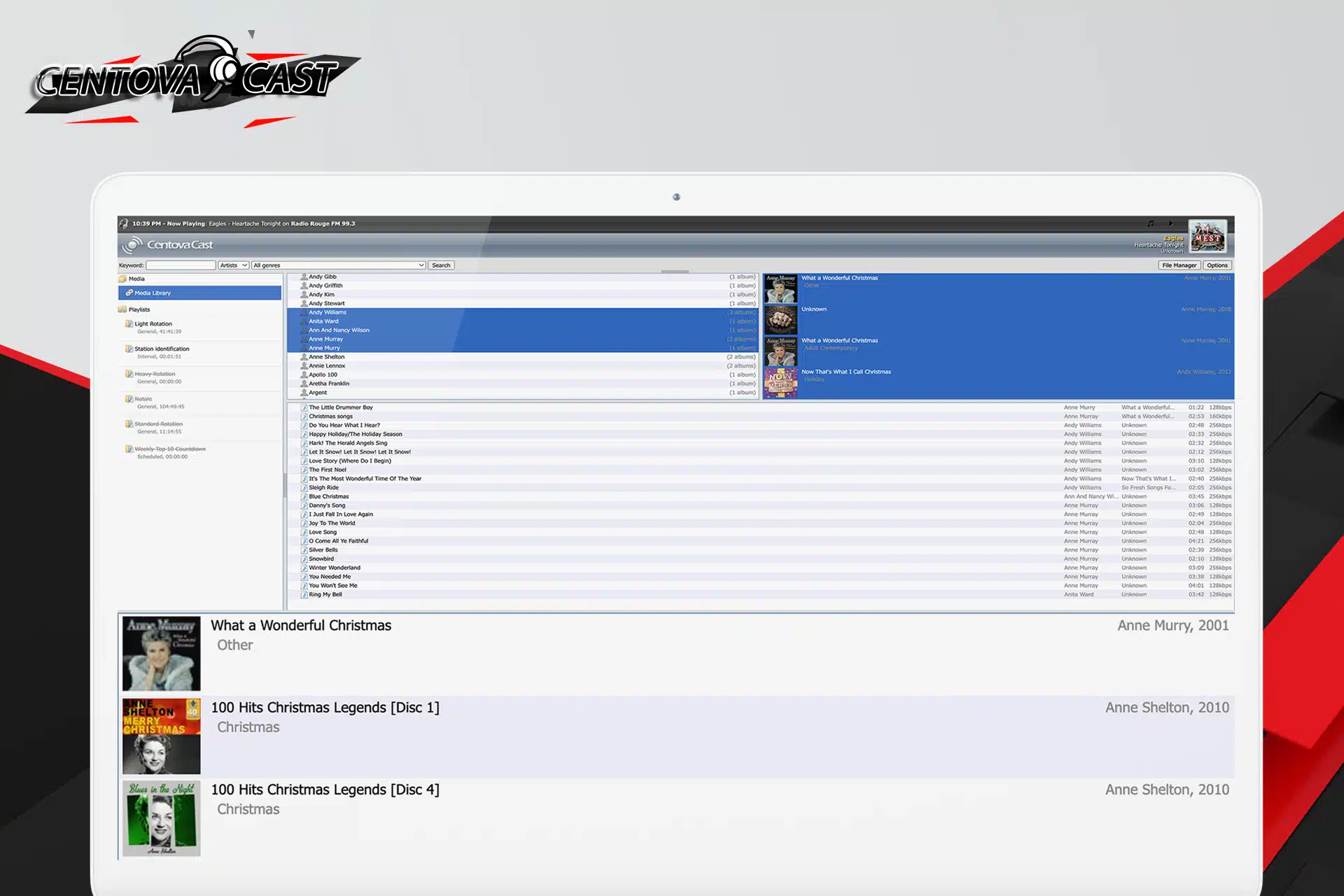
Media Library
The Centova Cast Playlist Management system is an essential feature for broadcasters who want full control over their station’s automation and music rotation. With this powerful tool, users can easily add media files to playlists, helping ensure that their streaming content is well-organized, up to date, and ready for broadcast at any time.
Uploading and Adding Media to Playlists
Centova Cast allows broadcasters to upload audio files directly into the media library and then assign them to specific playlists. As a result, station operators can quickly build and update playlists without needing complex tools or manual file handling. This makes it simple to keep content fresh and ensure smooth AutoDJ playback.
Simple and Efficient Workflow
One of the key advantages of Centova Cast is its straightforward workflow. After uploading media files, users can easily select tracks and add them to a playlist with just a few clicks or via drag-and-drop. This streamlined process saves time and reduces the effort needed to manage large music libraries.
Integration with AutoDJ and Scheduling
In addition, playlists in Centova Cast are fully integrated with the AutoDJ system and scheduling tools. This means that once media is added to a playlist, it can be automatically played according to your station’s schedule. Consequently, broadcasters can maintain continuous streaming without constant manual intervention.
Better Organization and Control
Centova Cast also provides useful organizational features that help manage media more efficiently. Users can structure playlists based on genres, shows, or themes, ensuring the right content is played at the right time. This level of control helps improve the overall listening experience for your audience.
Conclusion
In summary, adding media files to playlists in Centova Cast is a simple but powerful way to manage your radio station content. With its easy-to-use interface, drag-and-drop support, and full AutoDJ integration, Centova Cast allows broadcasters to focus more on creating great programming and less on technical management.
Click to zoom in on the image
How to Add Media Files to a Playlist in Centova Cast
Centova Cast provides a powerful and user-friendly Media Library that allows broadcasters to easily manage their audio content and build playlists for AutoDJ automation. One of the most efficient ways to organize your station is by using the built-in drag and drop feature, which allows you to quickly assign tracks to playlists without extra steps or complex configuration.
Understanding the Media Library
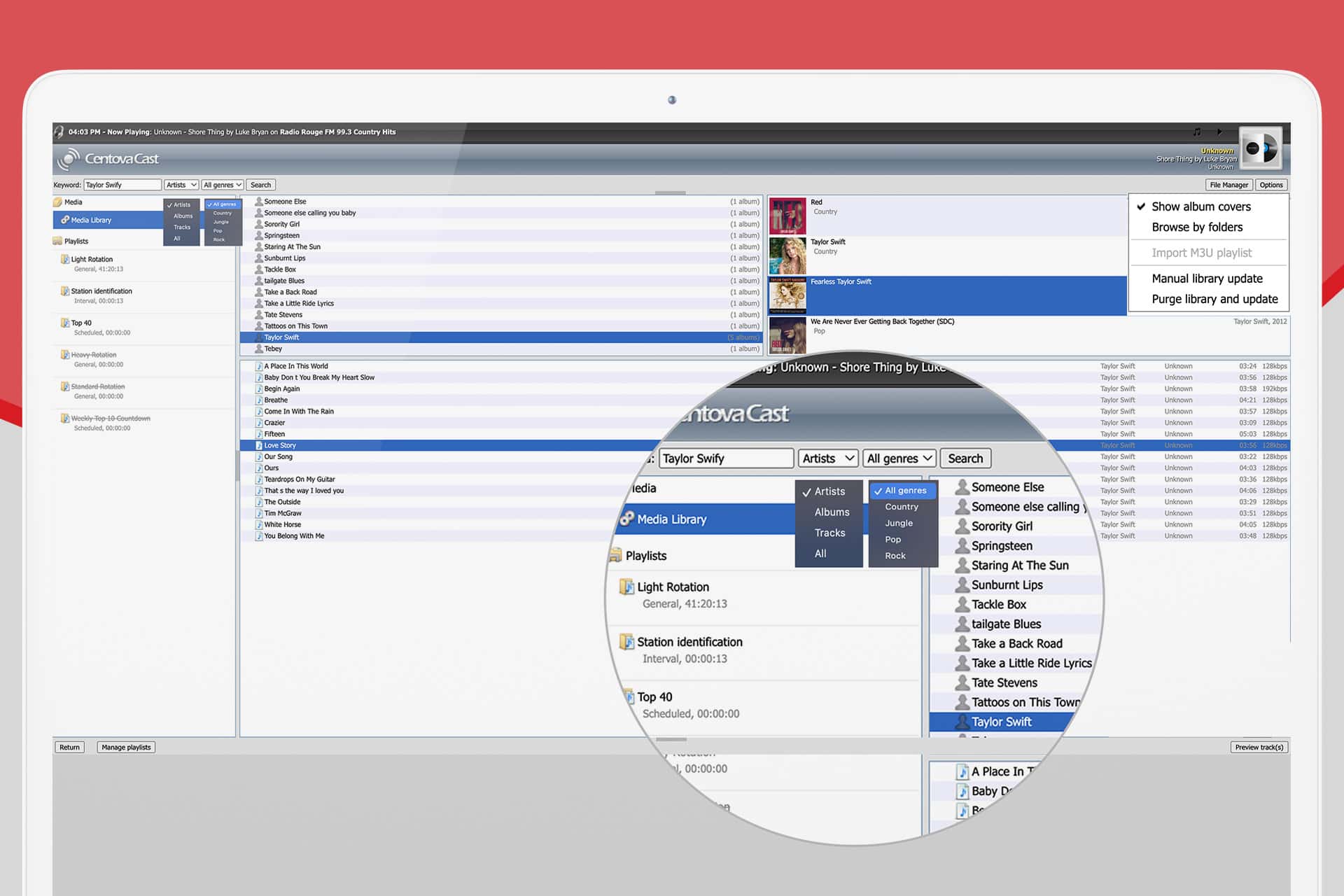
The Centova Cast Media Library is designed to help you browse, search, and organize your audio collection. It uses an intuitive structure based on
artists, albums, and tracks, making it easy to locate specific content even in large libraries. Once your media is uploaded, it becomes available for instant use in playlists.Step 1: Open the Media Library
To begin, log in to your Centova Cast control panel and navigate to the Media section under the AutoDJ menu.
This will open the Media Library interface where all your uploaded files are displayed.Step 2: Select Your Playlist
On the left-hand side of the Media Library, you will see a list of available playlists. Click on the playlist you want to edit or use for your broadcast.
This could be a rotation playlist, scheduled playlist, or any custom configuration you have created.Step 3: Browse Your Media
In the center section of the Media Library, you can browse your content by:
- Artist
- Album
- Individual tracks
You can also use the search function to quickly locate specific songs or artists.
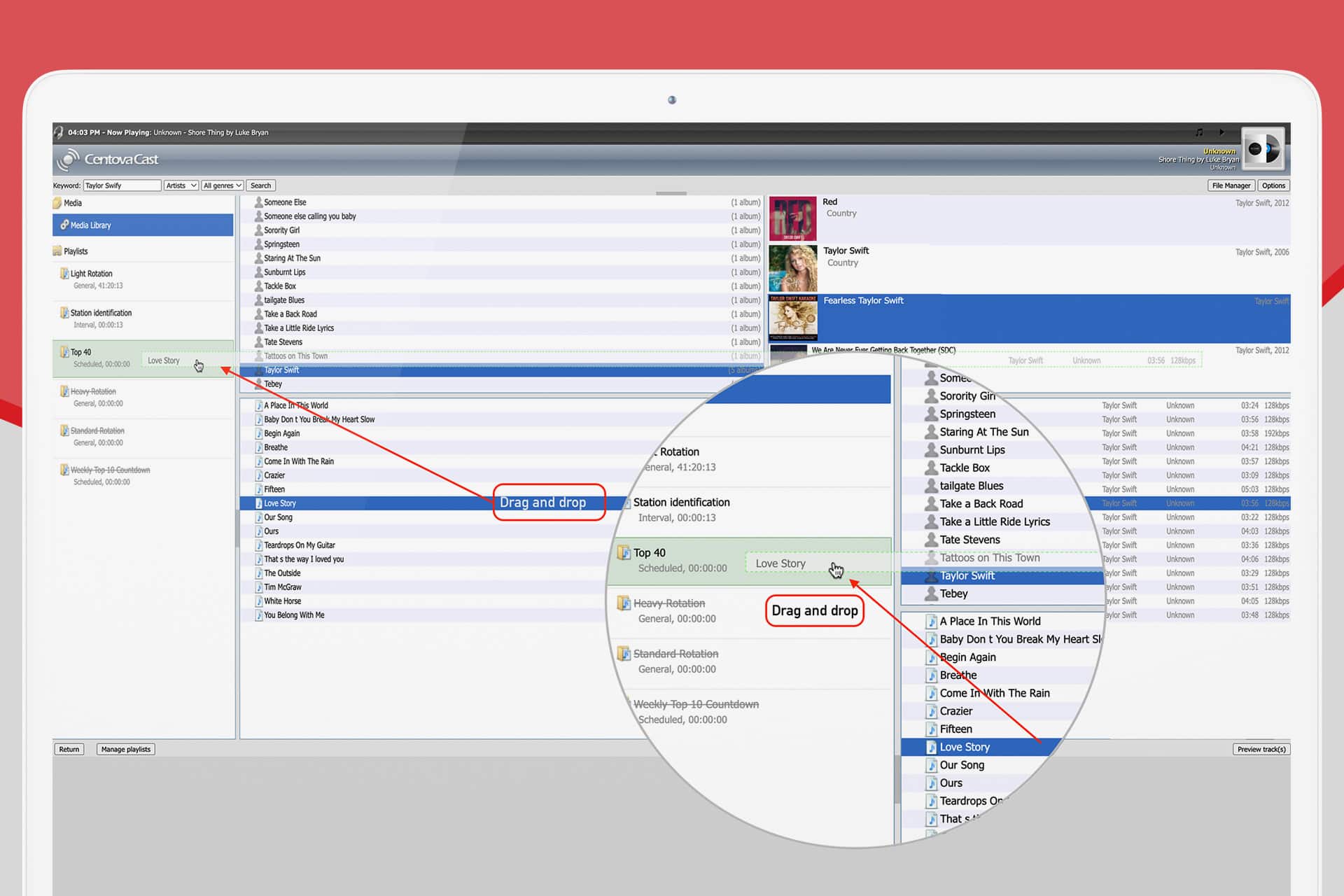
Step 4: Drag and Drop Media Files
- Once you have found the tracks you want to add, simply:
- Click and hold the artist, album, or track
- Drag the selection toward the desired playlist on the left panel
- Release the mouse button to drop the content into the playlist
You can also select multiple items at once using Ctrl (or Shift) and drag them together for faster playlist building. Once dropped, the tracks are immediately added to the playlist.
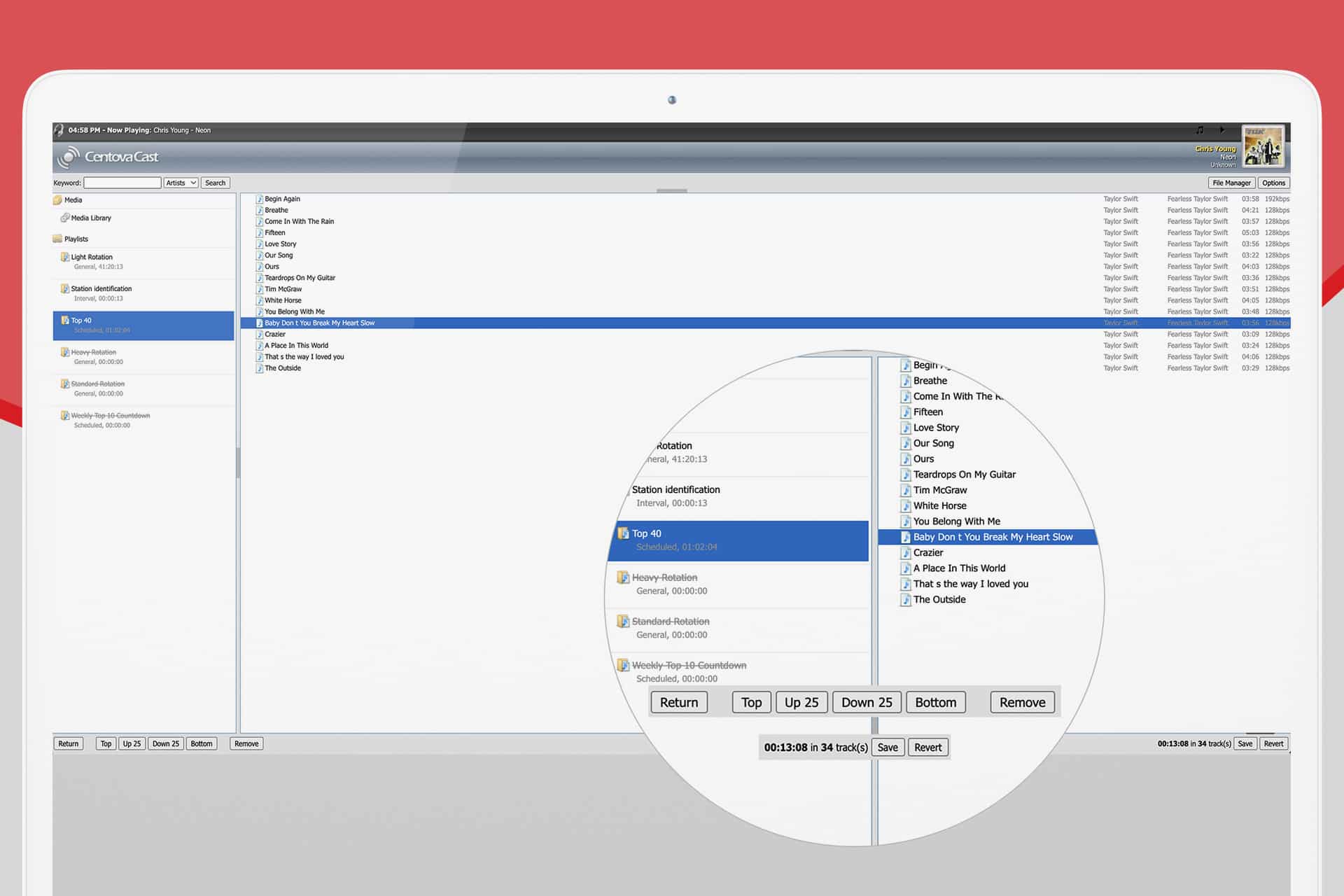
Step 5: Automatic Saving
One of the key advantages of Centova Cast is that changes are saved automatically. As soon as you drop media into a playlist, it becomes active and ready for use no manual saving is required.
Step 6: Verify Your Playlist
After adding your media, you can review the playlist to ensure everything has been added correctly. If the playlist is enabled, the new tracks will automatically become eligible for AutoDJ playback after the current track finishes.
Conclusion
The drag and drop feature in Centova Cast makes playlist management fast, simple, and efficient. By using the Media Library interface, broadcasters can quickly organize their content and keep their station running smoothly without needing technical expertise.
- Streaming Pulse Inc.
Whether you are managing a small station or a large broadcasting network, this workflow helps you maintain full control over your programming while saving valuable time.
Centova Cast Drag and Drop Media Files.
Discover how to add MP3 files to playlists in Centova Cast using drag and drop in the Media Library to manage your radio station efficiently.
Media Library
Drag and drop media files into Centova Cast playlists quickly and easily.
- Choose audio files from your Media Library.
- Find tracks using artists, albums, or folders.
- Playlist Editor - Playlist Settings
- Drag files into the playlist area.
- Changes are applied automatically.
Centova Cast: Your Essential Guide
The Centova Cast Client Usage Guide is your essential tool, equipping users with the expertise to excel in the Centova Cast realm. Take a deeper dive with our extensive video tutorial resources.